Calendars
The calendar allows you to plan things in time. And to record events that will happen.It also allows you to view at a glance how things are arranged in time.
Calendars are populated by calendar events, which belong to calendar streams.
Here's how a calendar might look like:
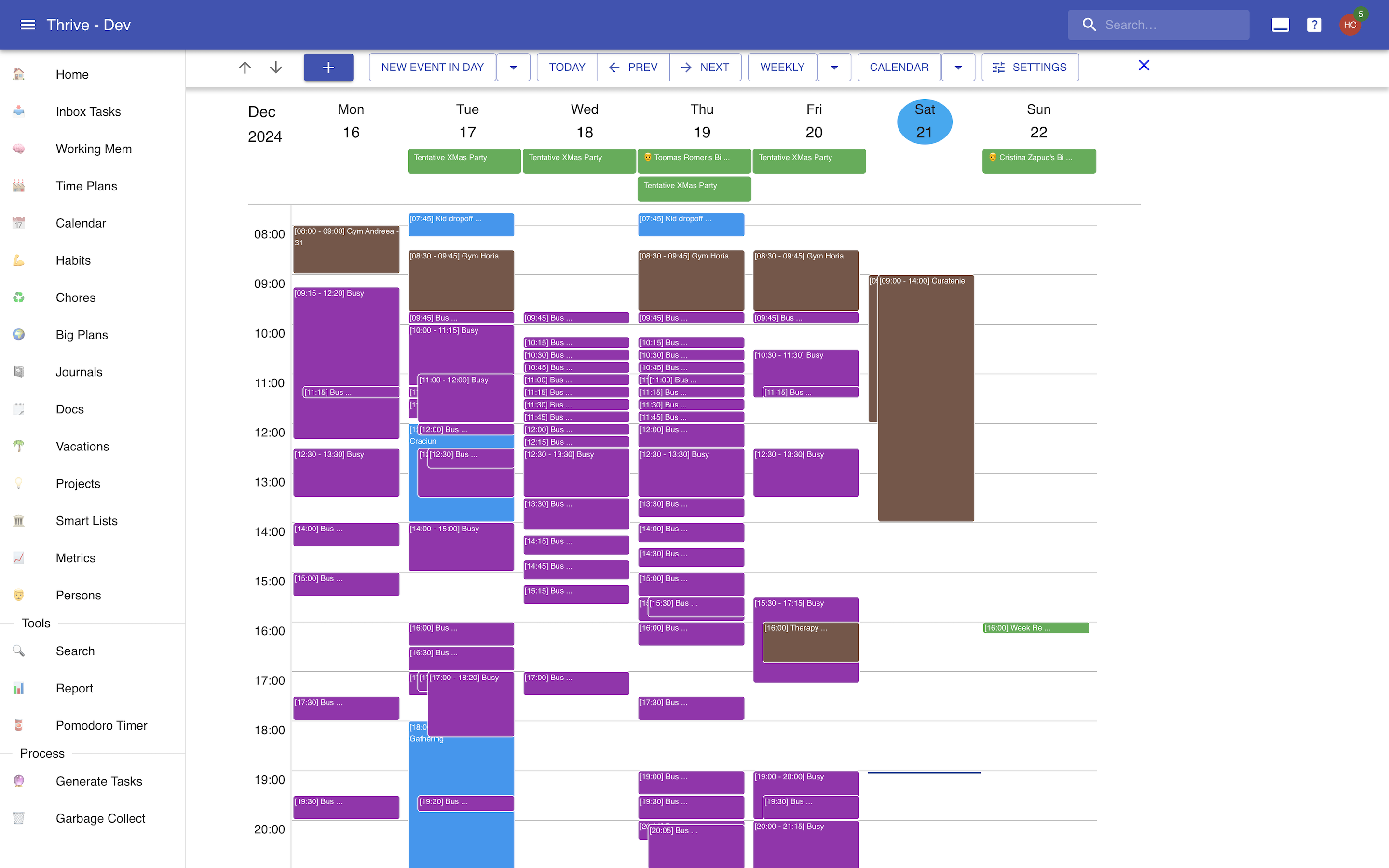
Calendar Events
Calendar events are the atomic units of time planning and time recording.They live in the "calendar". They can be "full day" or "in day".
Events Properties
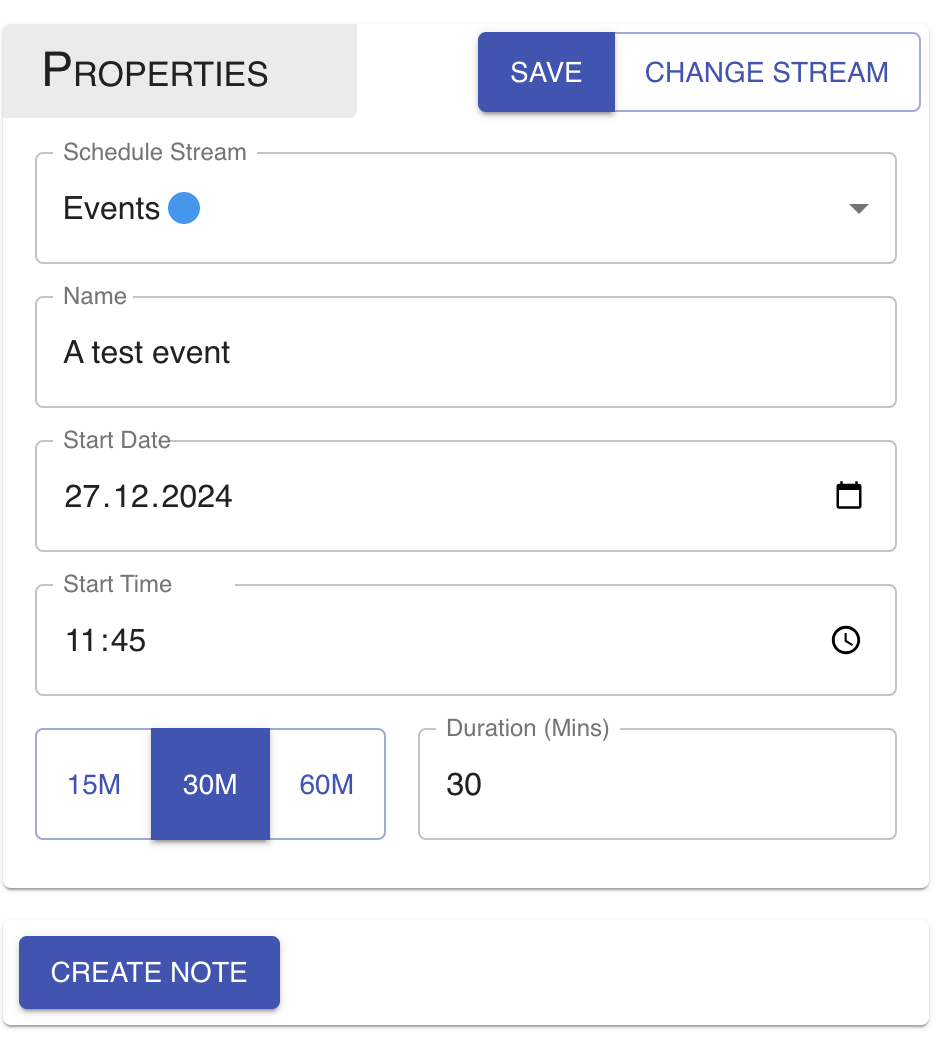
Calendar events have a name, and some notion of duration. Full day events start on aparticular day, and last 1 or more full days. In day events start on a particular dayand time, and last some amount of time, no greater than 48 hours.
In day events can also reserve a buffer before and a buffer after, each an optional number of minutes, for the logistics around the event. See Events for more.
Editing a calendar looks like this:
Sources Of Calendar Events
Events can exist on their own, or they can be generated by some other entity.
You can attach many calendar events to a single inbox task. The inboxtask is their source. The events are "in day", and their name is identical to the inboxtask that generates them.
Each birthday for a person generates a full day event on the respectivebirthday in that year.
Finally, each vacation has a full day event for the full durationof the vacation.
Calendar Streams
Calendar streams are containers of events. You can use them to group various typesof events together. They can contain both full day events and in day events.
There are two types of calendar streams:
- User: created and managed by you.
- External iCal: created and managed in another tool (such as Google Calendar, Outlook, etc.) and imported into Thrive via an iCal feed.
External calendars are just a read only view of the original calendar. So you cannotcreate or modify calendars there.
Streams Properties
Calendar streams have a name and a color. For external calendars only the color canbe modified
Schedule Exports
Schedule exports let you publish one or more calendar streams as an external iCal feed.
Each export has:
- a name;
- a set of selected calendar streams;
- a public external URL generated by Thrive.
The external URL can be used by other tools (Google Calendar, Apple Calendar, Outlook, etc.) to subscribe to the feed.
When a client calls this URL, Thrive returns an .ics calendar that contains:
- one calendar for the export;
- one event for each event in each selected stream (both in-day and full-day events).
This endpoint is designed for read-only sharing. Anyone with the link can read the exported schedule.
To share a schedule stream as a read-only Thrive web page (not an iCal feed), see Publish.
The Calendar
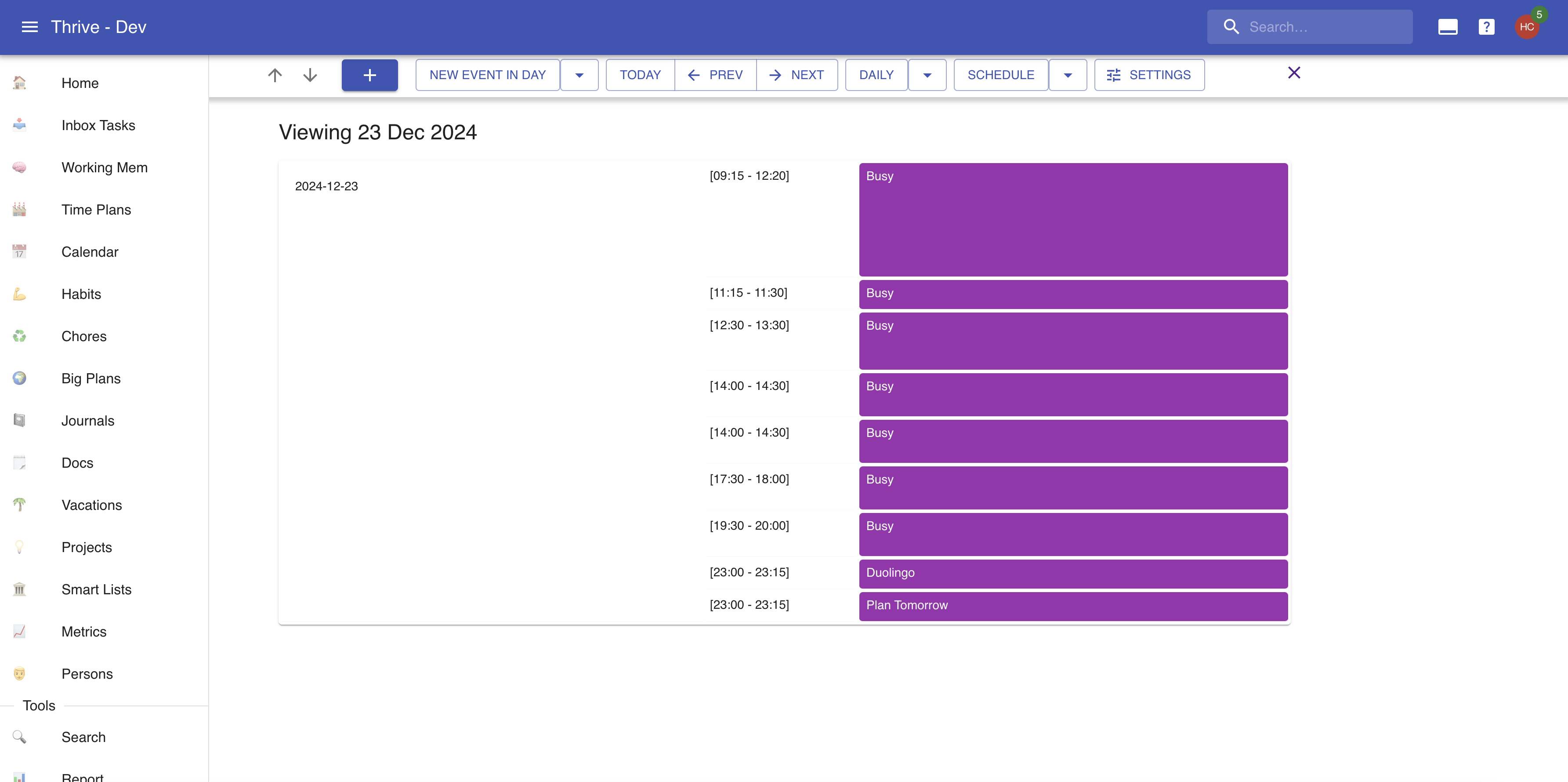
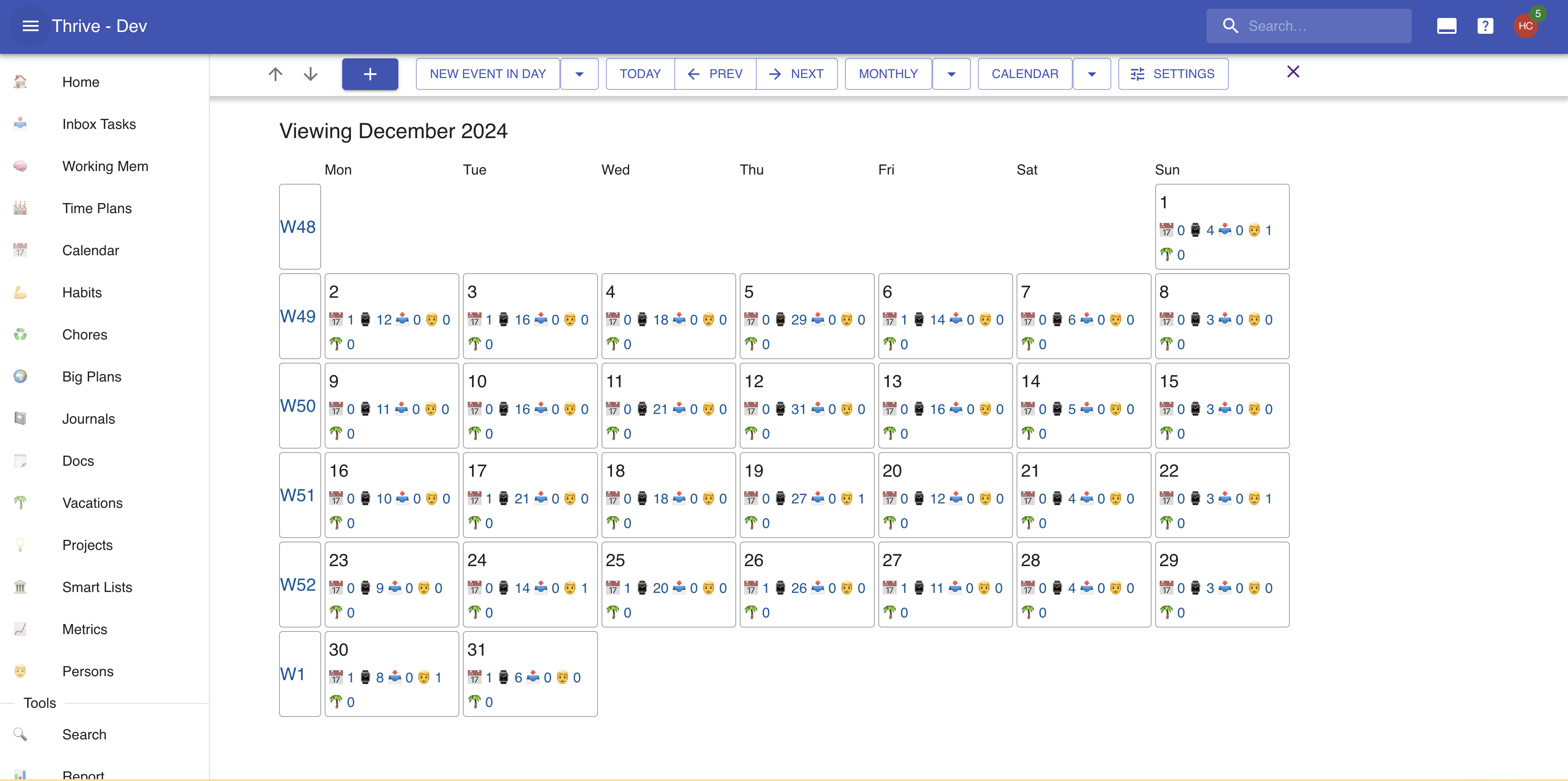
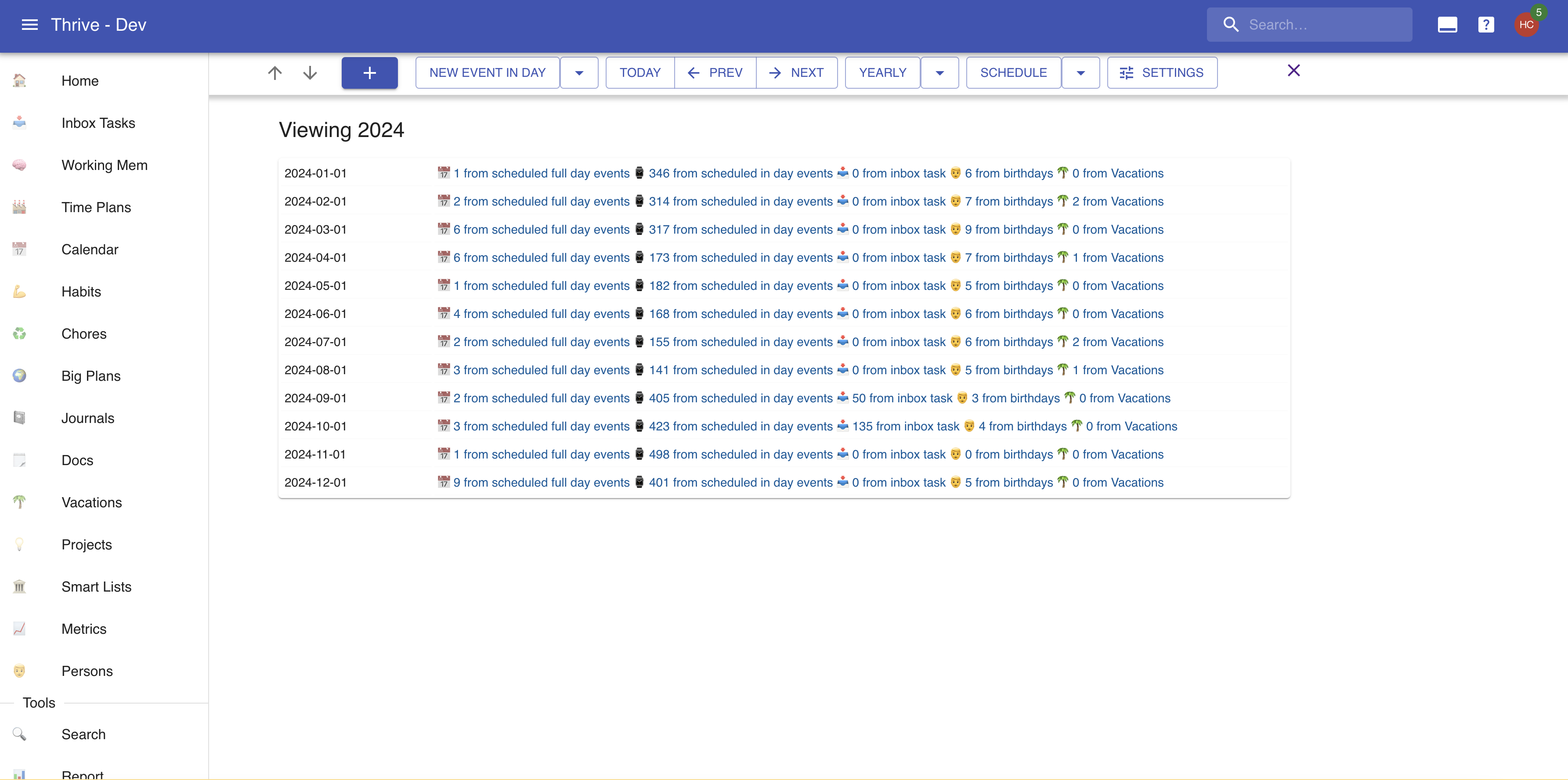
The calendar is a representation of your current events. You can view it as a schedule,or as a traditional calendar. You can zoom in and out to the typical resolutionThrive has: day, week, month, quarter, and year.
Here's a peek at some views:
Other Timezones
If you work across timezones, the calendar can show up to two more of them
next to your own. Pick them under Settings on the calendar, and the daily
and weekly calendar views - including the calendar view of a
time plan - grow one column of hours per timezone, to the left
of the days, each one labelled with the city it belongs to. Your own timezone
stays the leftmost column, and it is the one the events themselves are drawn
against - the other columns only tell you what the same hour reads as
elsewhere.
Moving Events Around
In the daily and weekly calendar views you can reschedule an event without opening it. Press and hold it for a moment - with the mouse or with a finger - and it comes loose, after which it follows you around the calendar. Drop it and it lands on the nearest quarter of an hour, on whichever day you dropped it on. A little label tags along while you drag, showing the day and the times the event would end up at, and dragging against the top or the bottom edge scrolls the calendar so you can reach a part of the day that's off screen.
The event keeps how long it lasts - only its start moves. Letting go somewhere
it can't go, or pressing Escape mid-drag, leaves it where it was.
To change how long it lasts, open the event first. A small grabber then appears at the bottom of it - drag that up or down. The grabber stays hidden otherwise, so it doesn't cover the events underneath it.
Events coming from an external calendar can't be moved this way, since Thrive doesn't own them. Neither can the all-day events at the top of the calendar, nor the leftover piece of an event spilling past midnight - drag the piece it starts in instead.
Peeking At Overlapping Events
In the daily and weekly calendar views on a big screen, events that happen at the same time are drawn one on top of the other, so their names get clipped and hard to read.
Right click on such an event - or just hover over it for a moment - and a panel pops up with a schedule view of everything happening around it: every event overlapping it, plus everything within half an hour before it starts or half an hour after it ends. The event you're peeking from is highlighted, and each entry in the panel links to its own event.
You can also press and hold an event in that panel to move it, the same way you would on the calendar itself. Once it comes loose the panel steps aside and the event slides on the calendar from the slot under the pointer, so you can drop it on the day and time you want.
The panel goes away when you press Escape, when you click elsewhere, or - if
you opened it by hovering - when you move the mouse away from it.