Time Plans
Time plans are plans that you make for a particular time period. It isa committment you make that in a certain period of time, you're going toaccomplish certain things. This is either making progress or finishingaltogether some inbox tasks or big plans.
While inbox tasks and big plans as they are capture the totality of the workthat you know of, and even assign due dates or active dates to them, time plansmake an explicit attempt at placing all this work in time, and committing toit.
The association between an inbox task or big plan and a time plan, is calledan activity. A time plan can be said to be the collection of its activities.
Time plans are also closely linked with journals. Whereasjournals are backward looking, time plans are forward looking.
Auto-Generation
Time plans can be configured to be generated automatically, via thetask gen mechanism. The mechanism is simple: a fewdays in advance of the time period a plan would target, a new plan isgenerated, with an optional planning inbox task attached to it.
There are a number of settings you can control:
- The periods you are using for planning. A typical scenario would be yearly and weekly plans.
- Whether to generate time plans and planning tasks, just time plans, or nothing at all.
- The eisenhower, difficulty, and aspect to use for generating tasks.
- How many days in advance to generate for each period.
Note that time plans are always for a given period, even if you generatethem in advance. The tasks associated with them have a due date set to thestart of the planning period, as you should finish your plans before theperiod.
Also note that if there's a time plan you created targeting that sameperiod and date combination, a new one won't be generated.
Properties
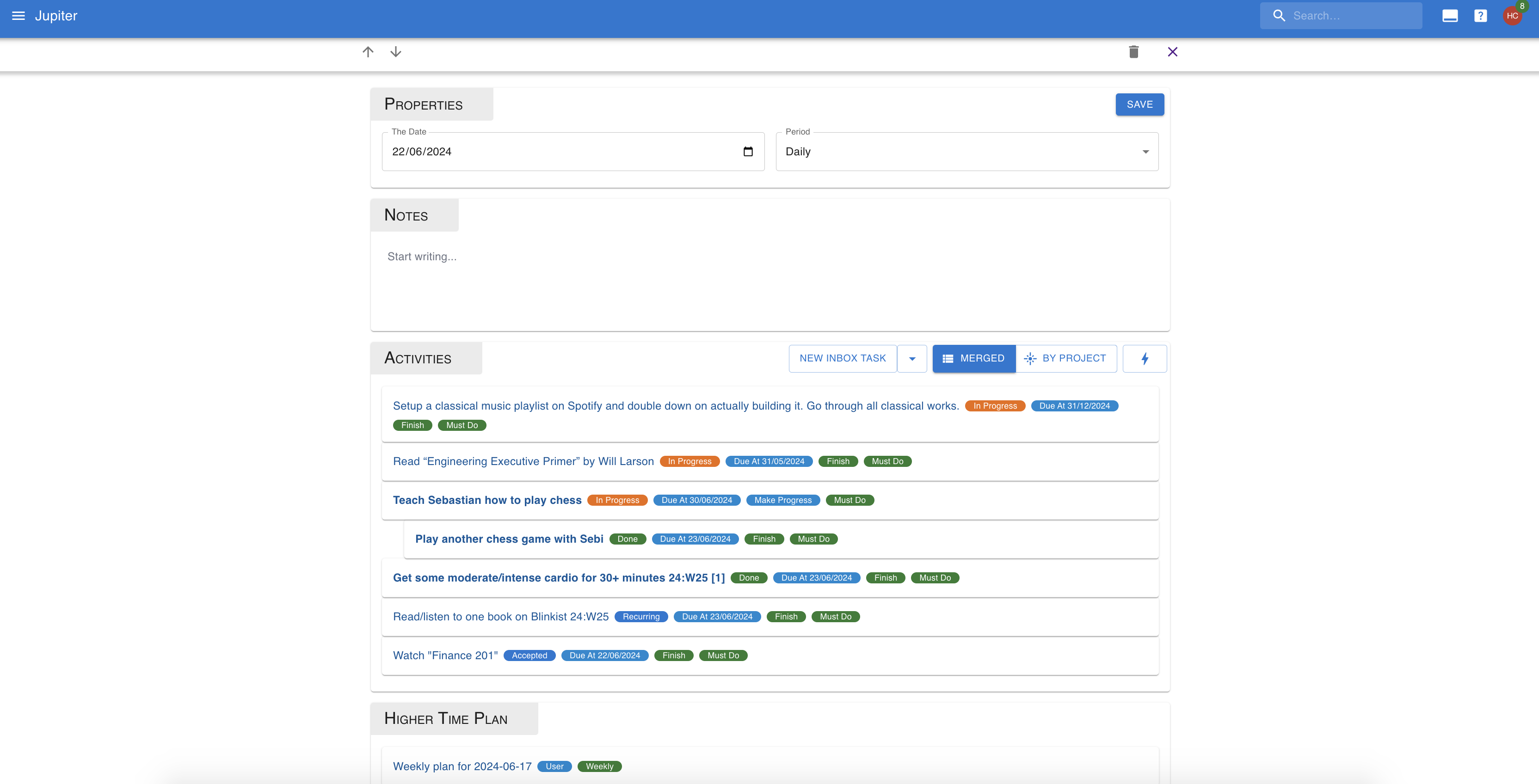
Time plans are written on a particular day for a particular period interval.The period can be one of:
- Daily: the day's plan
- Weekly: the week's plan, as recorded on the particular day.
- Monthly: the month's plan, as recorded on the particular day.
- Quarterly: the quarter's plan, as recorded on the particular day.
- Yearly: a whole year's plan, as recorded on the particular day.
Only one journal can exist for a particular day and period combination.
Time plans also have a written document attached to them, so you can addthoughts that don't fit as neatly into the activities format.
An activity has a target, which is either an inbox task or a big plan.
Activities also have a kind, which can be:
- Finish: you plan on finishing this activity during the period.
- Make Progress: you plan on making progress during the period.
Activities also have a feasability, which can be:
- Must Do: it is very important that you make the required progress on the activity during the period.
- Nice To Have: if you can make progress, it's good, if not, no worries.
- Stretch: very unlikely to make progress.
Finally activities have a measure of doneness withing the time plan.This is not something that can be judged at the level of a single activity,but requires looking at the whole thing.
- Inbox tasks of a finish kind are considered done if they are in either the done or not done status, and this occurred during the time plan's period.
- Inbox tasks of a make progress kind are considered done if there is some modification of the inbox tasks during the time plan's period.
- Big plans of a finish kind are considered done if they are in either the done or not done status, and this ocurred during the time plan's period.
- Big plans of a make progress kind are considered done if all the inbox tasks associated with it in the time plan are considered done, or if there are no such tasks if there is some modification done during the time plan's period.
Standard Questions
Planning goes easier when you don't have to invent the prompts every time. You can set up a list of standard questions - "What must get done this week?", "What could get in the way?", and so on - and Thrive will use them to lay out the document of each new time plan.
Questions live in the "questions" view of the time plans app. Each one has:
- A name, which is the question itself, as it'll show up in the plan.
- A period, which decides which plans it applies to. A weekly question appears in weekly plans only.
Questions are grouped by period, and within a period they have an order you control with the up and down arrows next to each one. That's the order they appear in the plan.
The name of a question can be changed at any time. The period can't - make a question for the other period instead.
How Questions Reach A Time Plan
When a time plan is created, the questions for its period are used to build the plan's note - the written document attached to it, not its activities. Each question becomes a heading, with an empty paragraph under it for you to write in.
When you create a time plan yourself, the new time plan form lists the questions for the period you picked, with all of them selected. Unselect the ones you don't need this time around, or unselect all of them to start from an empty document. Switching the period swaps the list for that period's questions.
Time plans created by the task gen mechanism get all the questions of their period.
The questions are copied into the plan's document at the moment the plan is created. Editing, reordering, archiving, or removing a question afterwards leaves the plans you already have alone - it only affects the ones created from that point on.
Archiving a question keeps it around, but drops it from the ordering and from new plans. Removing it gets rid of it for good. The general rules are in archival and removal.
Aspects And Goals In The Document
A time plan's document can lay out your life plan too: each aspect and each goal becomes a heading with an empty paragraph under it, right after the standard questions, so you can write down what you're planning for each of them.
The document follows the life plan tree. Each aspect gets a heading, then the
goals that belong to it, then nested aspects and goals the same way. This is
the whole life plan, not only the aspects and goals you picked on this plan.
Headings look like ⭐ Health, 🎯 Health / Run a marathon, and
⭐ Health / Sleep for a nested aspect.
Two switches control this:
- Include aspects of the life plan.
- Include goals of the life plan.
They live in the time plans settings view, where they decide what plans created by the task gen mechanism get. They also decide how the switches on the new time plan form start out - flip them there to change your mind for one plan without changing the setting.
Like the questions, the aspects and goals are copied into the plan's document at the moment the plan is created. Changing the life plan afterwards leaves the document alone.
The switches only show up when the life plan feature is enabled for the workspace.